
How to create a Person post
Create a Person profile for your People section, then use it as an author and reference. Includes six screenshots and troubleshooting FAQs.
Profiles, authors, and references · SayitRight® Support
A Person post gives an individual a reusable profile. You can credit the person as an author and reference their profile from articles and other content. The content type is called Person; a site’s browsing section may be called People.
This guide covers creating the profile, choosing its destinations, and connecting it to other content. Screenshots use the fictional example Alex Example. Example contact addresses are illustrative. No sample profile was published for these screenshots.
Before starting, prepare the correct name, a short summary, a portrait, a longer biography, and any public contact links you intend to show. Use approved images and contact details.
1. Start a Person post
In the SayitRight® dashboard, open Posts → New post. Under Where are you creating it?, choose the intended channel. Under What are you creating?, select Person.
Choose the dedicated Person template for that channel, then Continue. In the example it is labeled Standard · Person. A Resource template offered elsewhere in the list may present the content differently; use the profile template to follow the fields in this guide.
If the type or template is unavailable, check the channel and its Targets with your administrator. The options available to your account can differ from these screenshots.
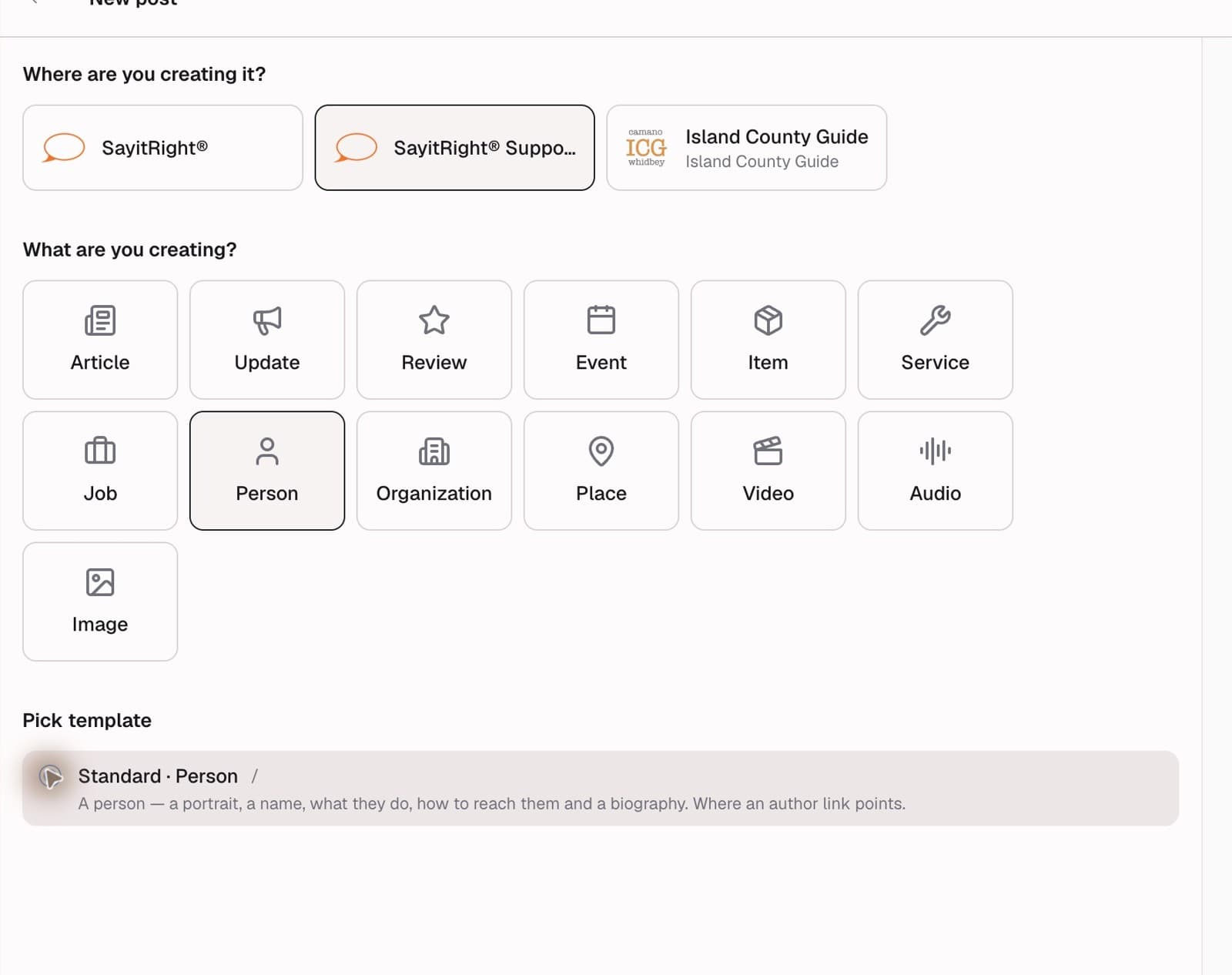
2. Review the destinations
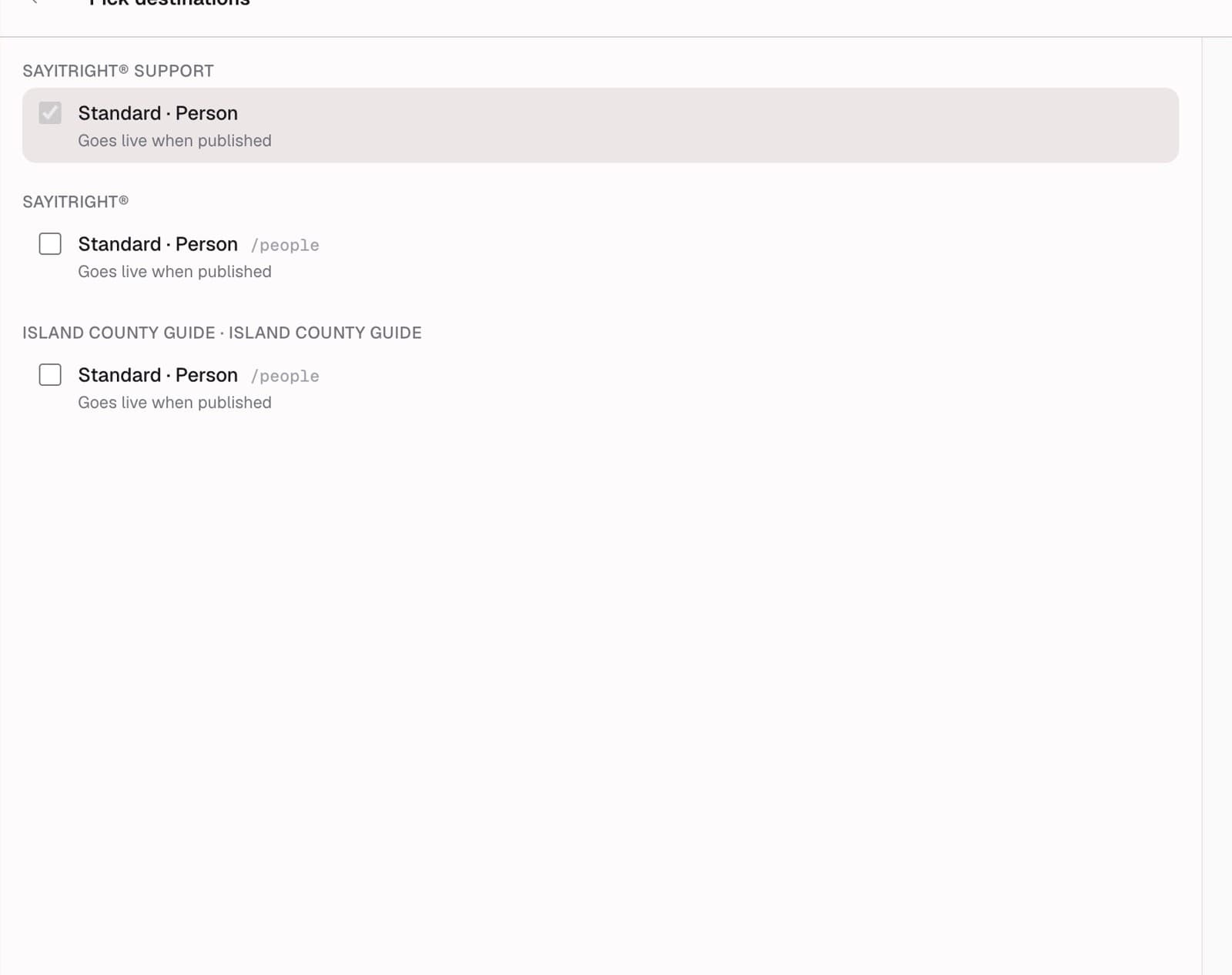
The Pick destinations step shows the starting destination and any additional places you can publish. Keep the intended channel selected and add other destinations only when you want the profile to appear there.
Read the template and path beside every destination. An optional As Article destination presents the post as an article; it is not the same presentation as the Person profile. Avoid selecting extra destinations simply because they are available.
Select Continue to open the editor. The right-hand preview may contain sample material until you supply your own content. Check the saved public page after publication.
Paths depend on the target: the support Person template shown here uses the root prefix /, while another channel may use /people. Review the generated address rather than assuming every site uses the same prefix.
3. Enter the core profile
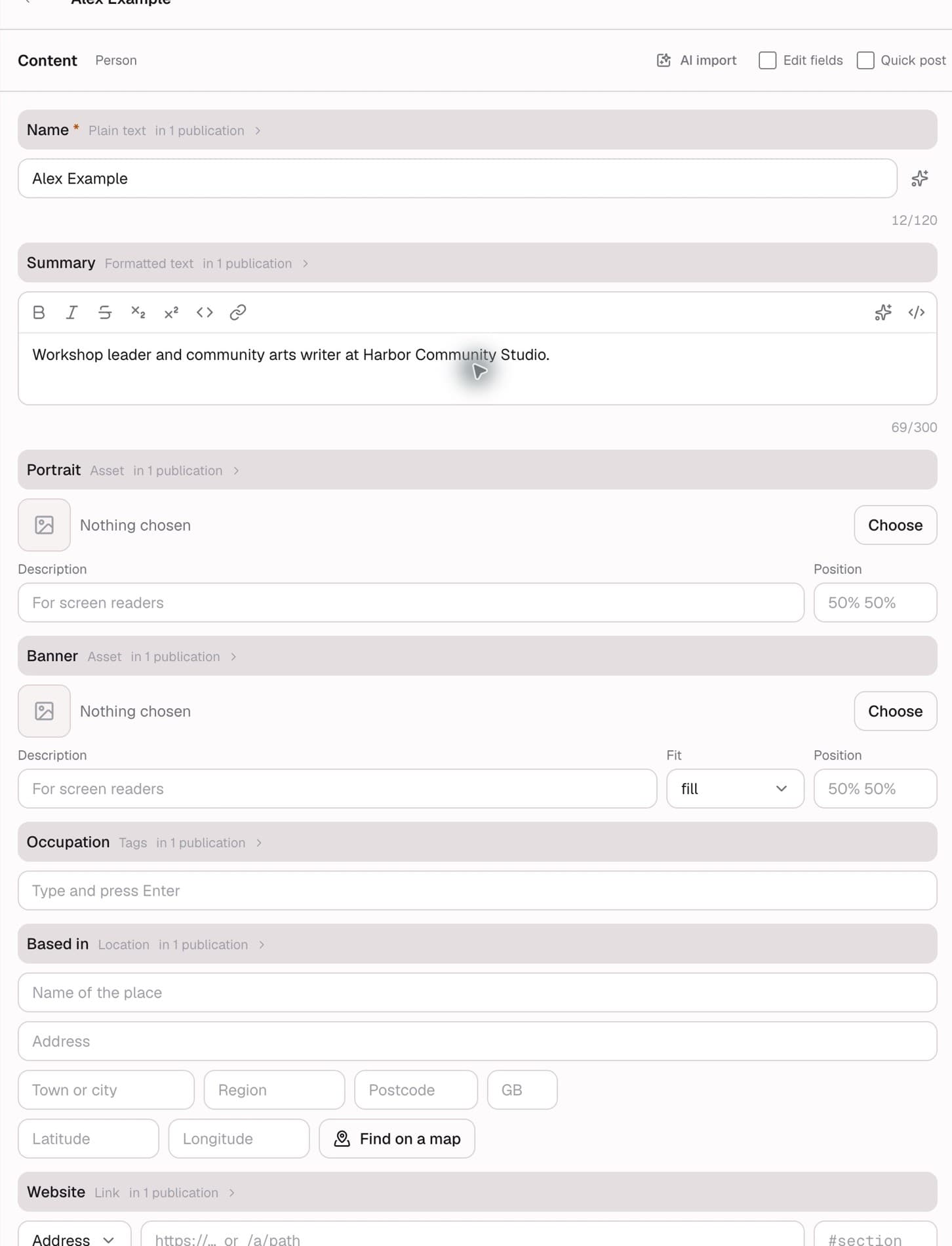
Use the full editor for this walkthrough; leave Quick post unchecked so you can see the optional fields.
Enter the required Name: Alex Example in this example. Use the recognizable person name you want displayed in credits and profile links. Add a Summary that explains who the person is and what they do in one or two sentences.
For example: “Workshop leader and community arts writer at Harbor Community Studio.”
Under Portrait, choose a clear image of the person. Add a Banner if the profile needs a wider header image. Use Choose to select or upload an asset, and write a useful image description. Check the available fit and position controls so the subject or logo is not cropped awkwardly.
Add Occupation tags, such as “Workshop leader,” by typing a value and pressing Enter. Use Based in for a relevant public location. Leave optional information blank when it does not help visitors.
4. Add links and the longer Biography
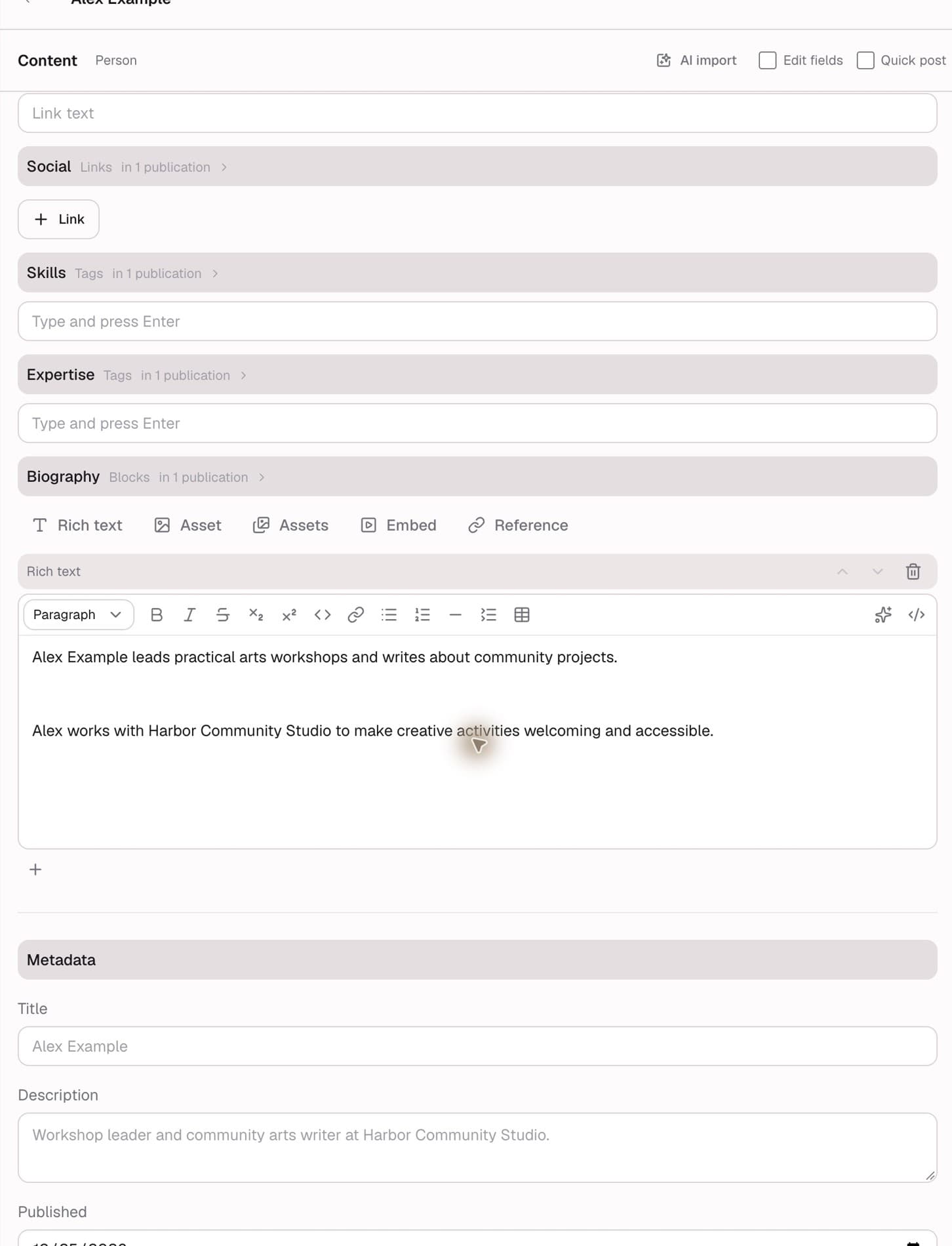
Use Website for the public website address. Use Contact for the appropriate contact link; choose Email for an email address. Add public social profiles through Social → Link, then check every address.
Add Skills and Expertise tags where helpful. Type one tag at a time and press Enter. Choose specific, useful terms rather than repeating the entire summary.
In Biography, add a Rich text block. Describe the person’s role, experience, interests, and connection to their work. Use a concise opening paragraph, followed by relevant experience and a way to learn more.
Example opening: “Alex Example leads practical arts workshops and writes about community projects.”
Use headings and short paragraphs to make a detailed profile easy to scan. Add an Asset, Assets, or Embed block when it helps explain the work. A Reference block can link to a related post—for example, the Organization profile for the person’s workplace. A written mention of a name does not automatically create a reference.
5. Save and publish the profile
Review Metadata, the selected destinations under Publish to, and the generated Path. Keep the address clear and recognizable. Check the preview for the correct name, image, summary, links, and longer text.
Leave Draft checked while preparing the profile, then select the create/save action. A draft lets you return and finish the content. When it is ready for visitors, review the destination’s publication status and make it Listed. An existing post’s publication controls are under Publications; open the publication’s actions/settings to inspect its status.
A Listed publication is intended to appear in the site’s normal listings. Hidden is a separate status and should not be treated as private access protection. A destination may require review rather than publishing immediately.
Open the profile’s saved public address and verify it before adding links from other live posts. Creating a Person post does not create a user account, send an invitation, or grant dashboard access.
6. Use the person as an author
Open the article or other post you want to credit. Choose a template that exposes an Author reference field. In the full content editor, find Author → Choose post.
Search for the saved Person profile by name, or use the address option in the picker. Select the matching profile and Save the article. Check its public presentation for the intended author credit; the template determines how that credit is displayed.
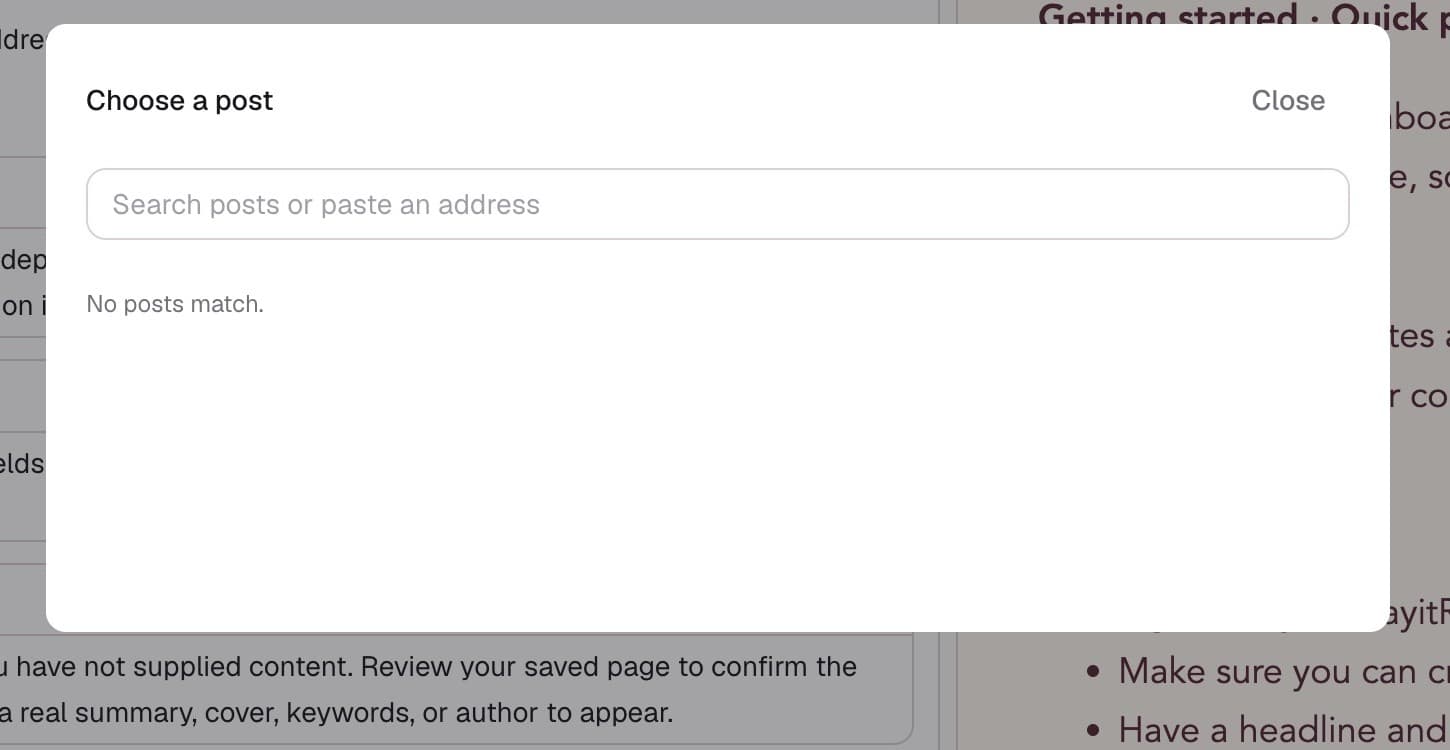
The author picker accepts eligible Person or Organization posts. The screenshot below shows its empty state before any eligible profiles were saved in this network. If you see No posts match, create and save the profile first, then reopen the picker and check your search and network.
A displayed author profile is separate from the dashboard user who edits the post. Crediting a person does not grant account access.
7. Use the profile as a reference
Open the post that should refer to the person. In a blocks field such as Story, About, or Biography, choose Reference. You can also use Add a block after this → Reference to place it between existing blocks.
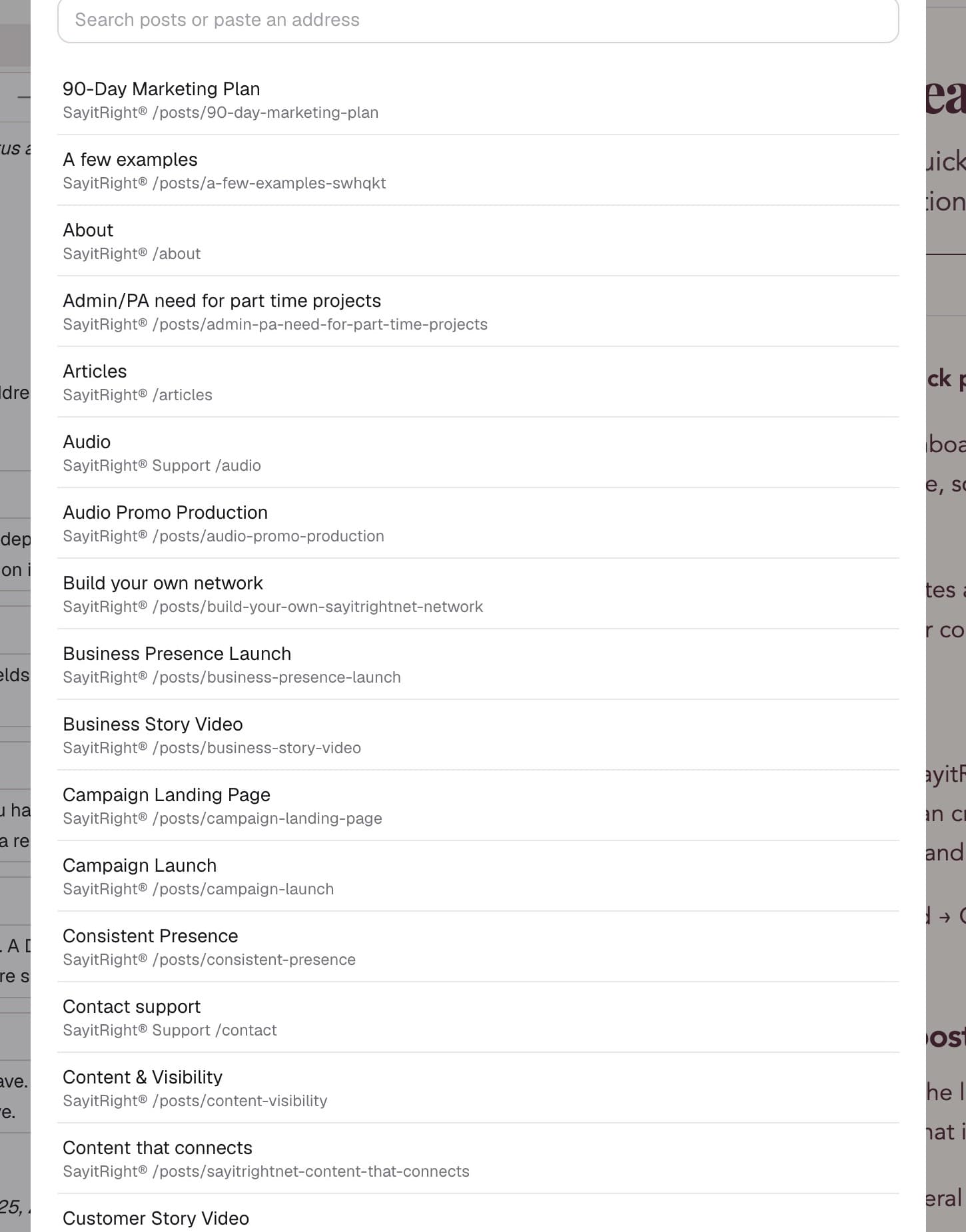
Select Choose post, search for the profile, and select the correct result. Check the name, channel, and path before saving. The reference picker can offer many kinds of posts; choose the Person profile you intended.
Save the containing post, then test the reference on its public page. Make sure the profile has a suitable live publication and that visitors can follow the link. A saved reference does not by itself publish the referenced profile.
If a template provides a dedicated reference field, use that field for its stated purpose. A general Reference block provides a connection in the content; selecting an Author field provides the author credit. Review each in the template’s public presentation.
Check the complete result
Confirm that the profile shows the right identity and public details, the author credit appears on the intended article, and the reference leads to the correct profile. When the same profile is reused, keep that original profile current rather than making a new duplicate for every article.
Frequently asked questions
Why does my profile not appear in the author picker?
Check that the post was saved as a Person or Organization, rather than being an article that merely describes one. Check the current network, search text, and your access. The author field is restricted to eligible profile types.
Why can I find a post in Reference but not in Author?
Reference blocks can link to a broader range of posts. Author fields select eligible Person or Organization profiles. Use the appropriate profile type for a reusable author identity.
Does adding a reference publish the profile?
No. The referenced post needs its own publication. Review its destination, status, and public address, then test the link as a visitor.
Can I use the same profile on more than one post?
Yes. Select the existing profile in each author or reference field. Reuse helps keep the identity and profile information consistent. Additional channel destinations depend on the available targets and your permissions.
Can a person have a profile without dashboard access?
Yes. A content profile and a user account are different things. Create or manage account access separately when it is actually needed.
Continue learning
Create an Organization profile · Create a Quickpost · Create a channel
Browse all support guides · Contact support
Platform terminology
Need a definition? The SayitRight® Platform Lexicon explains posts, channels, targets, templates, authors, references, and publication settings.
Keywords
- support
- getting started
- profiles
- authors
- references
- people