
How to create a Quickpost
Create your first Article using Quick post with a narrated walkthrough, seven screenshots, and practical guidance on drafts and publication.
Getting started · Quick post · About 5 minutes
Quick post is the dashboard’s streamlined way to create content. It shows the essential fields for your selected template, so you can get a useful post together without working through every optional field.
This walkthrough creates an Article on SayitRight® Support. Use your own channel when following along. Other content types and channels can show different fields and destinations.
Watch: how to create an article
Follow Sara through creating an Article using Quick post—from choosing the channel and template to reviewing a draft and publishing. 2 minutes 37 seconds, with narration, captions, and highlighted controls. Pause whenever you want to follow along.
Before you start
- Sign in to your SayitRight® dashboard.
- Make sure you can create content on the channel you want to use.
- Have a headline and the main text ready. An image is optional for this example.
The route: Dashboard → Quick post → channel, type, and template → destinations → content → draft or publish.
1. Open Quick post
Select Dashboard in the left menu. At the upper right, select Quick post. The next screen is headed New post—that is expected.
If you work across several networks, first check the network name at the top of the dashboard menu.
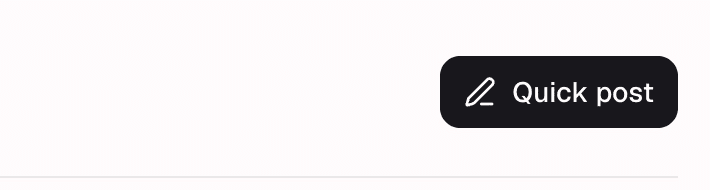
Screenshot 1: Start with Quick post on your dashboard.
2. Choose where you are creating the post
Under Where are you creating it?, choose the channel the post is for. This example uses SayitRight® Support. Your own dashboard will list the channels available to your account.
This choice establishes the starting channel and the templates you can choose from. You will review any additional destinations in the next stage.
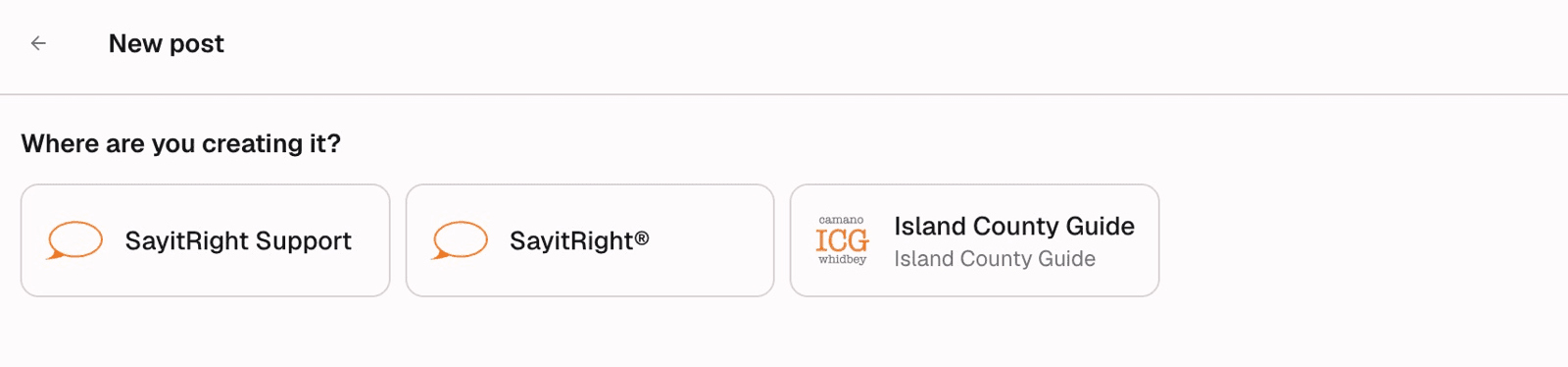
Screenshot 2: Choose your channel before choosing a content type.
3. Choose the content type and template
Under What are you creating?, select Article for a post with a headline and story. For a different task, choose the appropriate type offered by your channel—for example, Update, Event, Item, or Service.
Under Pick template, select the available Article template. Here it is Standard · Article, with /articles shown as its path prefix. The preview helps you understand the template’s layout; sample text and pictures in that preview are examples, not content you have already entered.
Select Continue at the upper right.
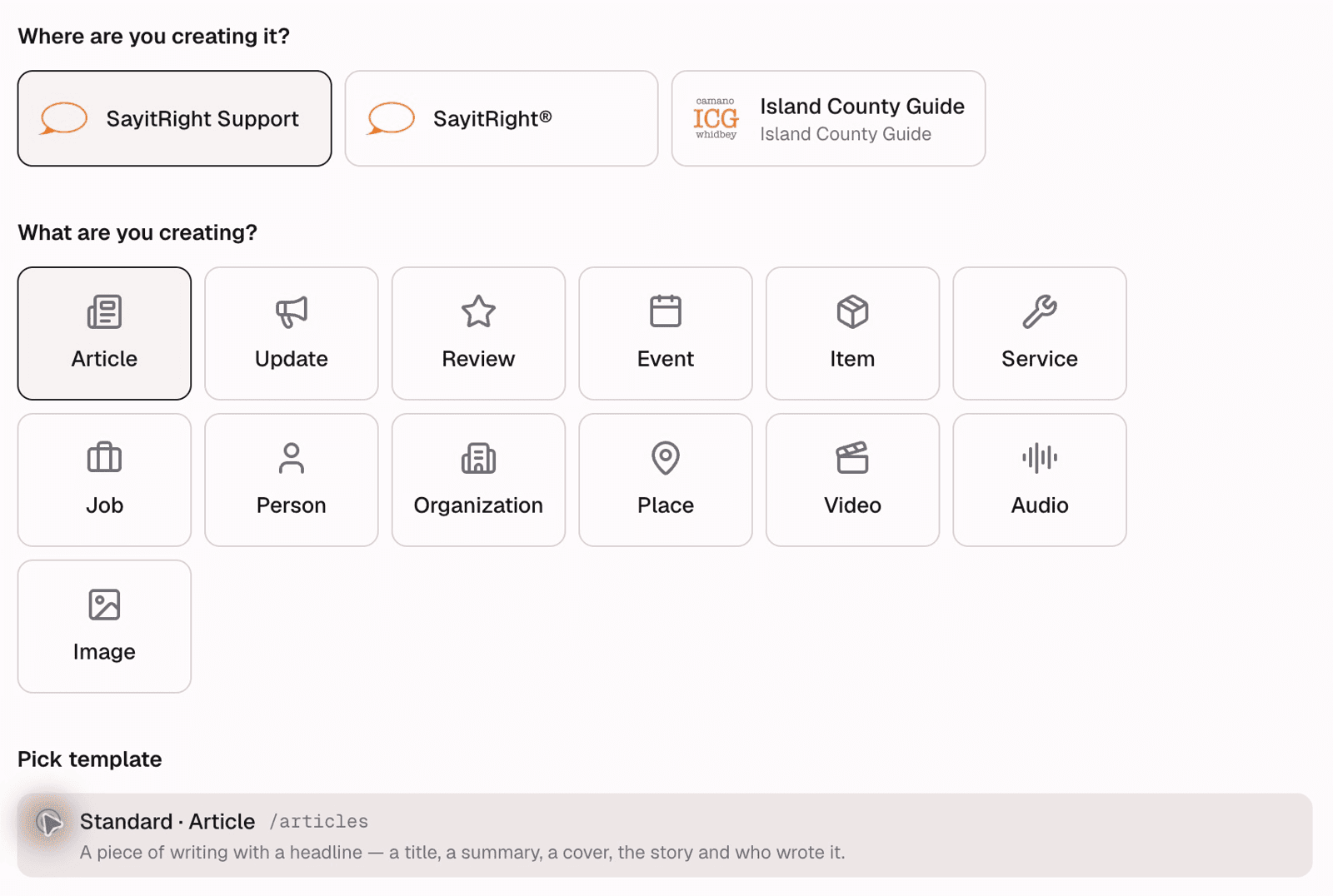
Screenshot 3: Select a content type and a template. The template controls which fields are available.
4. Review the destinations
The Pick destinations screen shows where the post can be published. The starting channel’s destination is already checked and cannot be unticked here. Other available destinations have their own checkboxes.
For your first post, keep only the intended destination selected. Do not select extra channels simply because they appear in the list. Read the note alongside each destination: this example says Goes live when published. Other channels may require review.
Select Continue.
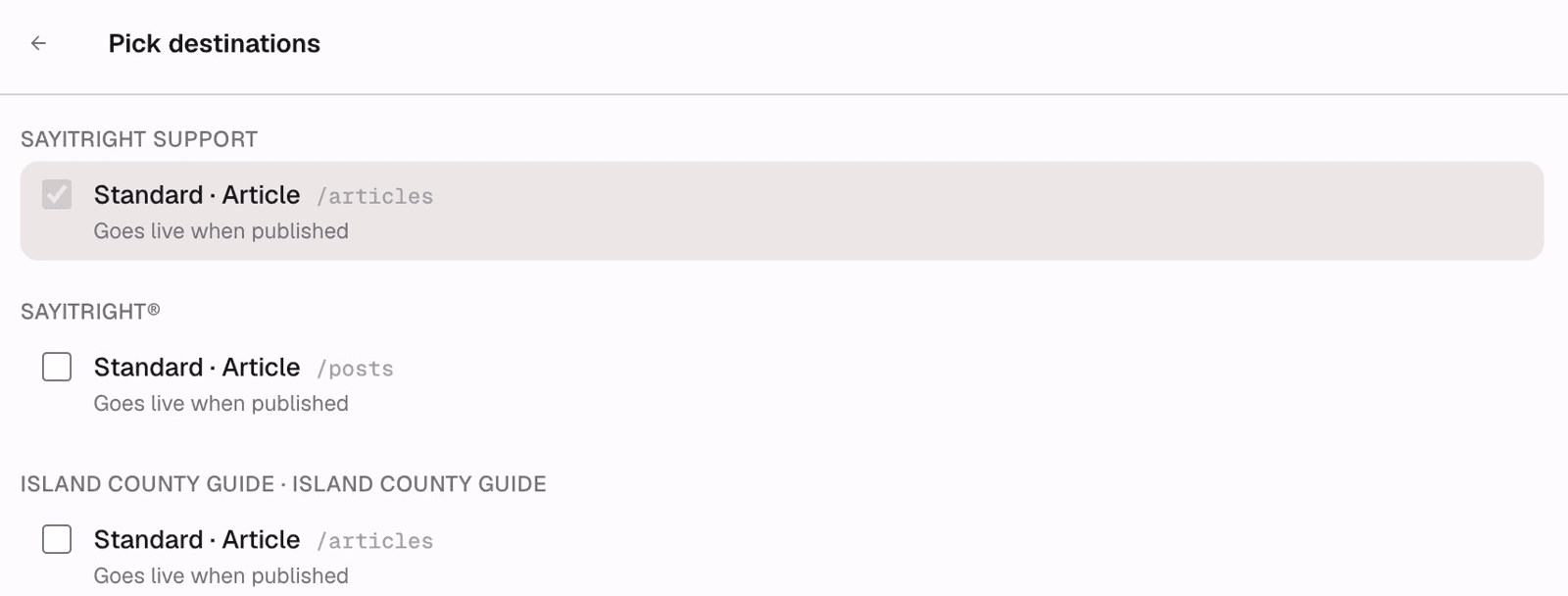
Screenshot 4: Check the destination names and their publishing behavior before continuing.
5. Write the essential content
The editor opens with Quick post checked. In this Article example, Title and Story are marked required.
- Enter a clear headline in Title.
- Write the main content in Story. Start with the point readers need most, then give the supporting details and a useful next step.
- Use the text toolbar for headings, bold, links, and lists when they help readers scan.
- Review the preview alongside the editor. Check your actual words and links, rather than treating sample placeholders as a finished post.
The Story field also offers Rich text, Asset, Assets, Embed, and Reference blocks. You can keep your first post to text and add media when it helps explain the message.
The screenshots use this guide’s own title and introductory text as the example.
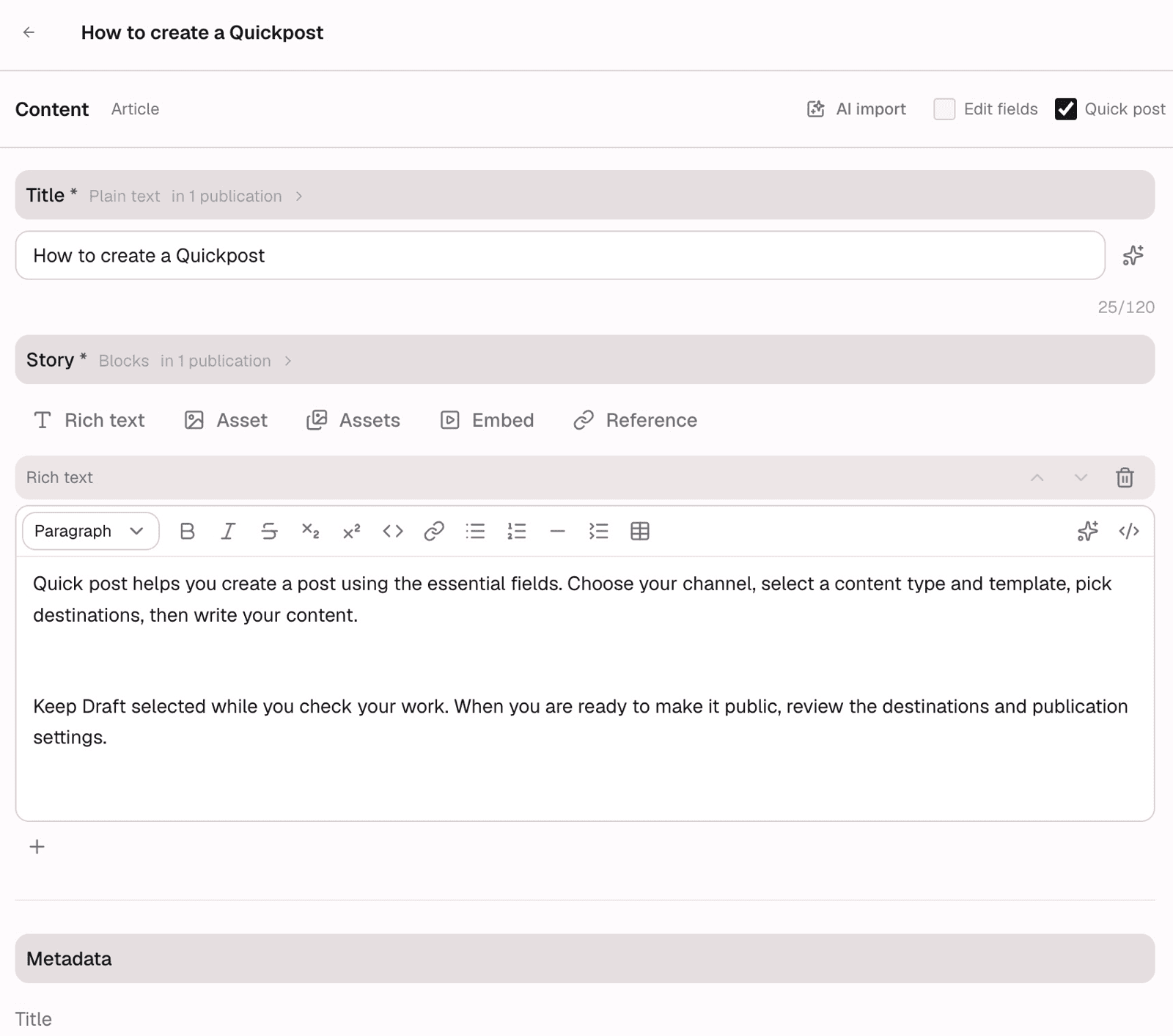
Screenshot 5: Enter your headline and main text in Title and Story.
6. Add optional details when you need them
Untick Quick post to reveal the rest of the template’s fields. For this Article, these include:
- Summary: A short introduction used under the title and on cards.
- Cover: A lead picture or video. Add a useful description for screen readers.
- Keywords: Tags that describe the subject. Type a tag and press Enter.
- Author: Choose a person or organization post to credit, when appropriate.
You can turn Quick post back on to simplify the view again.
The separate Metadata area provides a title, description, publication date, and preview image. Publish to shows your destinations, with a Change button and a path for each publication. Keep the generated path unless you have a reason to change it. The Published date accepts today or an earlier date; it is not a future scheduling control.
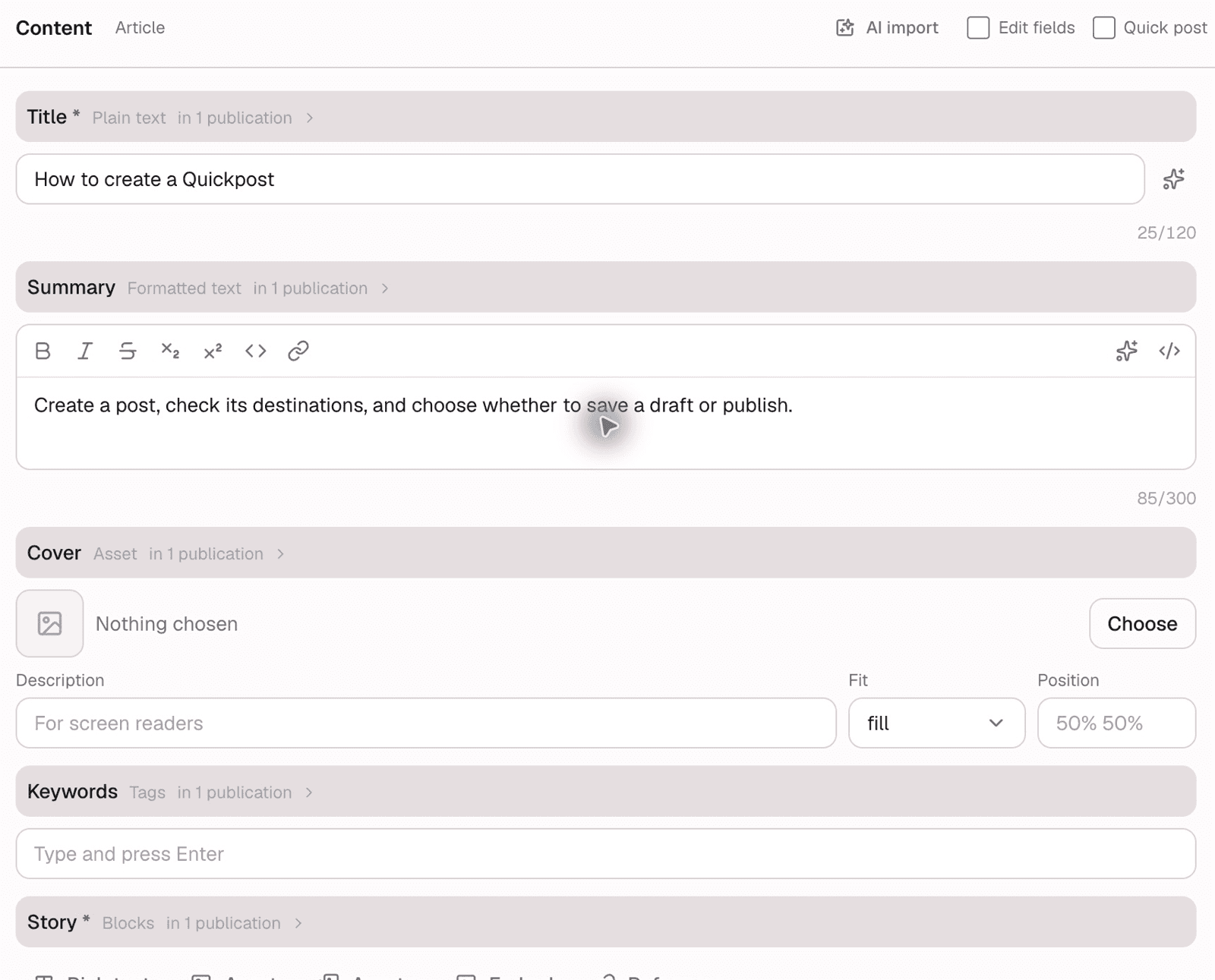
Screenshot 6: Turn off Quick post when you need the optional Article fields.
7. Choose draft or publication, then create the post
At the top of the editor, review the Draft checkbox before selecting Create post.
- Draft checked: Every selected publication is created as a draft. Use this while reviewing your first post.
- Draft unchecked: Each selected publication goes live, or is offered for review where the destination channel moderates submissions.
Check that your title and story are complete and that the intended destinations are selected. Select Create post once. When creation finishes, the saved post opens in its editor.
For this walkthrough, we kept Draft checked. A saved post and a live publication are separate things: saving a draft does not make it public.
8. Review the saved post and publish when ready
After creation, the post editor has Content, Publications, and Settings tabs. Make any content changes under Content and select Save.
To review a publication:
- Open Publications.
- Find the entry for the correct channel and path.
- Open Actions → Settings for that entry.
- Review its Status. This example starts as Draft. The available choices are Draft, Listed, and Hidden.
- When the post is ready and your account permits it, choose Listed and select Save in the publication settings.
- Open the public page and check the title, text, pictures, and links.
Repeat the review for each destination if you selected more than one. A channel that reviews incoming content may handle publication differently.
Indexed controls whether a visible page appears in search. Turning it off is not a substitute for keeping unfinished content as a draft.
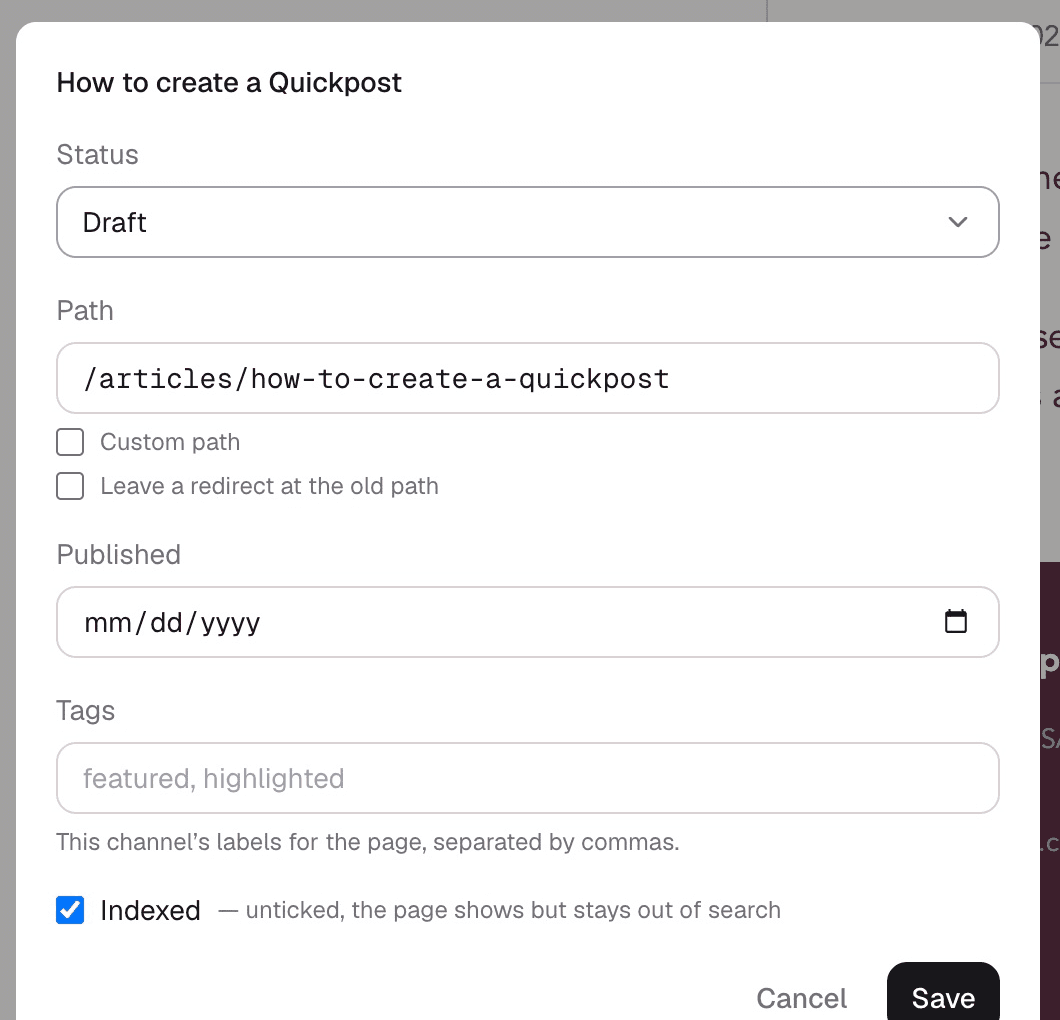
Screenshot 7: Publication settings control the page’s status and path.
Quick checks before you share
- The correct channel and destination are selected.
- The title tells readers what the post is about.
- The story is complete and the links work.
- Any images have useful descriptions.
- The saved publication has the intended status.
- You have opened the public page before sharing its address.
Questions and troubleshooting
I cannot see the channel or template I need.
Check that you are in the correct network. The choices depend on the channels, templates, and permissions available to your account. Contact your administrator if an expected option is missing.
Why can I only see a few fields?
Quick post is checked. Untick it to show the optional fields supplied by the chosen template. Different content types have different fields.
Why does the preview show sample content?
The template preview can use sample values where you have not supplied content. Review your saved page to confirm the final output. Fill the relevant optional fields if you want a real summary, cover, keywords, or author to appear.
I created the post, but it is not public.
Open Publications and check its status and destination. A Draft remains unpublished; some channels require review. Confirm the publication is Listed and check its public page before sharing it.
Can I edit it later?
Yes. Open the post under Posts, edit its Content, and Save. Shared content changes can affect its publications, so review the destinations before changing material that is already live.
Back to SayitRight® Support · Ask for help
Checked against the SayitRight® dashboard on October 25, 2026. Labels and available options may vary by channel, template, and account permissions.
Platform terminology
Need a definition? The SayitRight® Platform Lexicon explains posts, channels, targets, templates, authors, references, and publication settings.
Keywords
- getting started
- quickpost
- quick post
- publishing
- drafts