
How to create a channel
Set up a SayitRight® channel with sections, starter pages, a hostname, and consistent branding. Includes six screenshots.
Getting started · Channels · SayitRight® Support
A channel is a publishing destination: the website, templates, sections, pages, and addresses that present your posts to visitors. This guide walks through the setup form and shows where to finish the site’s branding afterwards.
Before you begin, have a site name, a short description, your public contact details, and an idea of the sections you need. Check that you are in the right network and have permission to create channels.
The screenshots use an illustrative “SayitRight® Learning Channel.” The setup was not submitted; the final settings screenshot shows our existing support channel. Follow the steps with your own details.
1. Open Channels
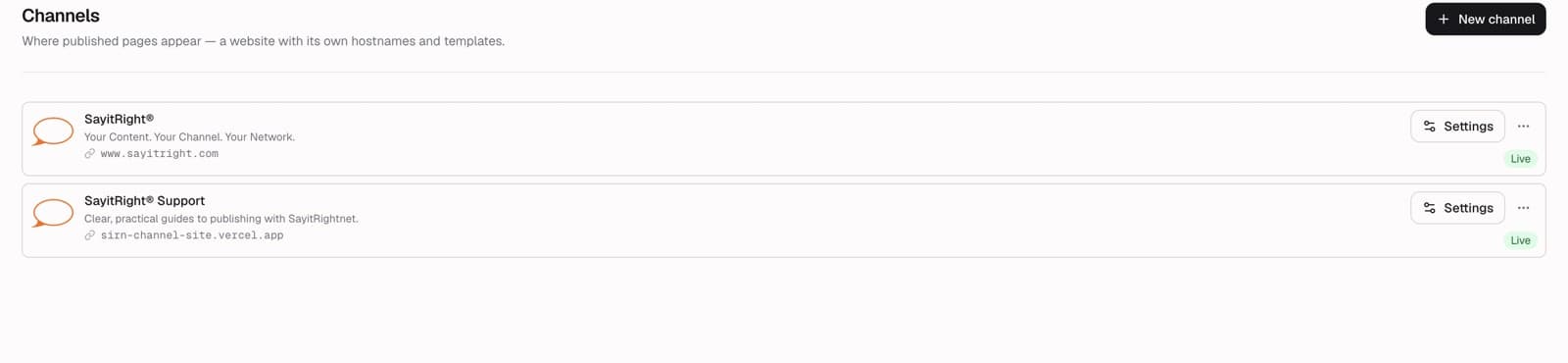
In your dashboard’s left menu, choose Channels, then New channel at the upper right. If you manage several networks, check the network selector first.
2. Give the site its identity
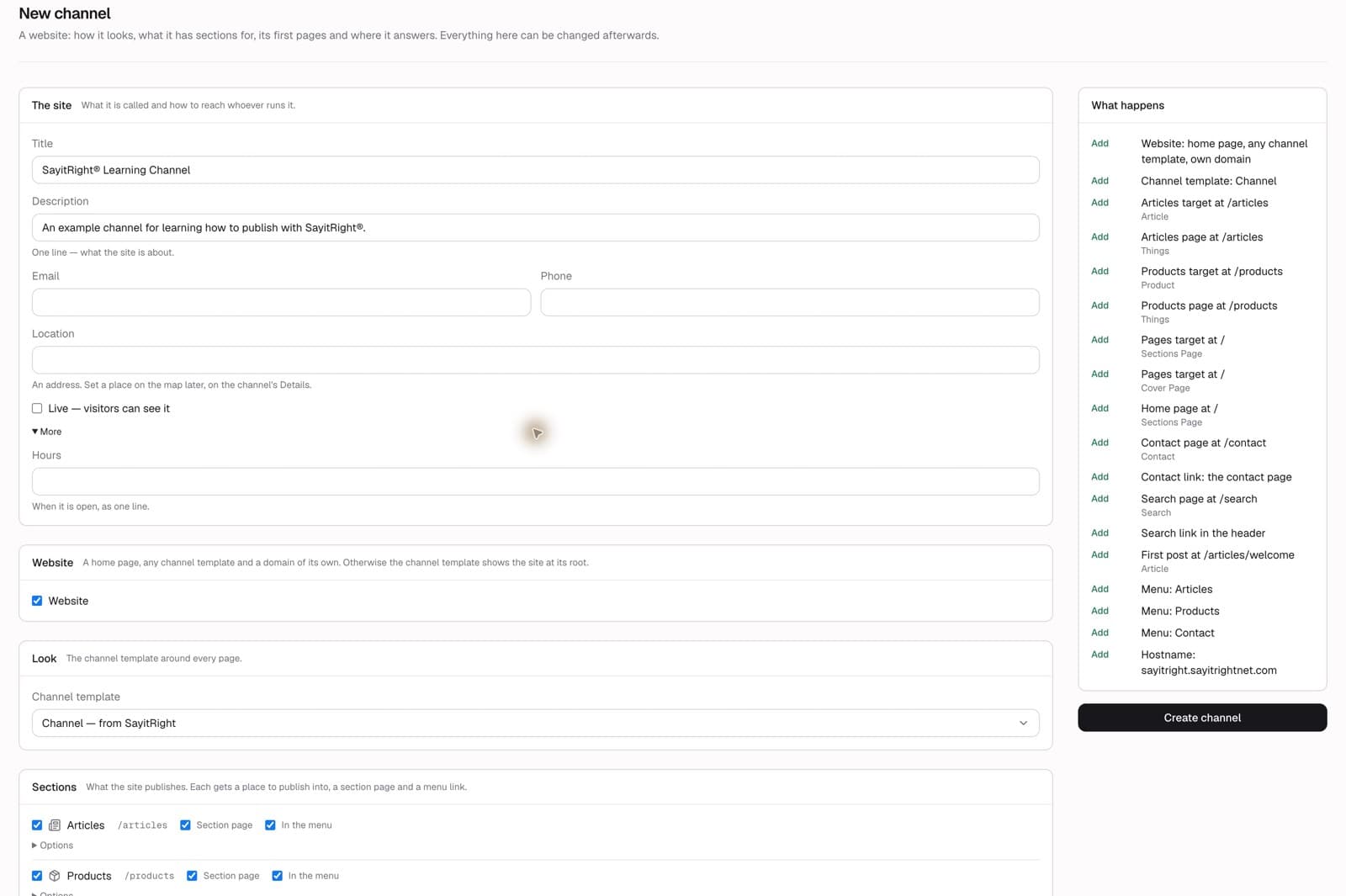
Under The site, enter the Title and a concise Description. Choose a name visitors will recognize. Add the public Email, Phone, and Location where relevant. The location box accepts an address; the form notes that you can set a map location later in the channel’s details. Expand More to add opening Hours.
Review Live — visitors can see it deliberately. It is checked initially. Leave it unchecked while preparing a site you do not want visitors to access yet. This controls the channel; individual posts also have their own publication status.
For a site with its own home page, leave Website checked. The form describes this option as providing a home page, a channel template, and a domain of its own.
3. Choose the surrounding design
Under Look, choose the Channel template. The choices shown in this dashboard include “Channel — from SayitRight” and “Website — from SayitRight.” These are the interface’s template names. Choose the template suited to the site you are building; the preview and later template settings help you refine its appearance.
A channel template supplies the surrounding site design. A post template controls how a particular article, person, product, or other post is displayed.
4. Select the sections you need
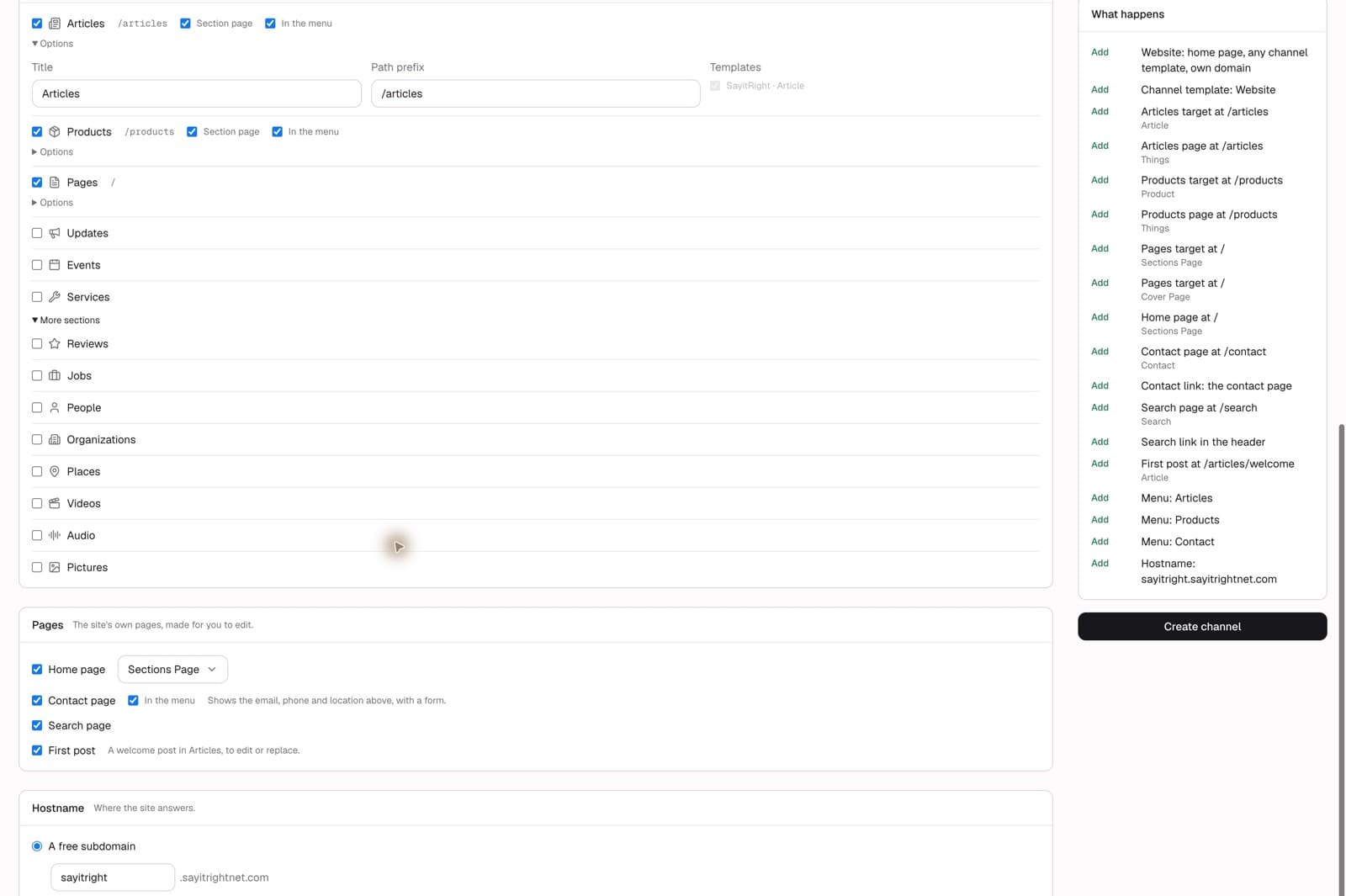
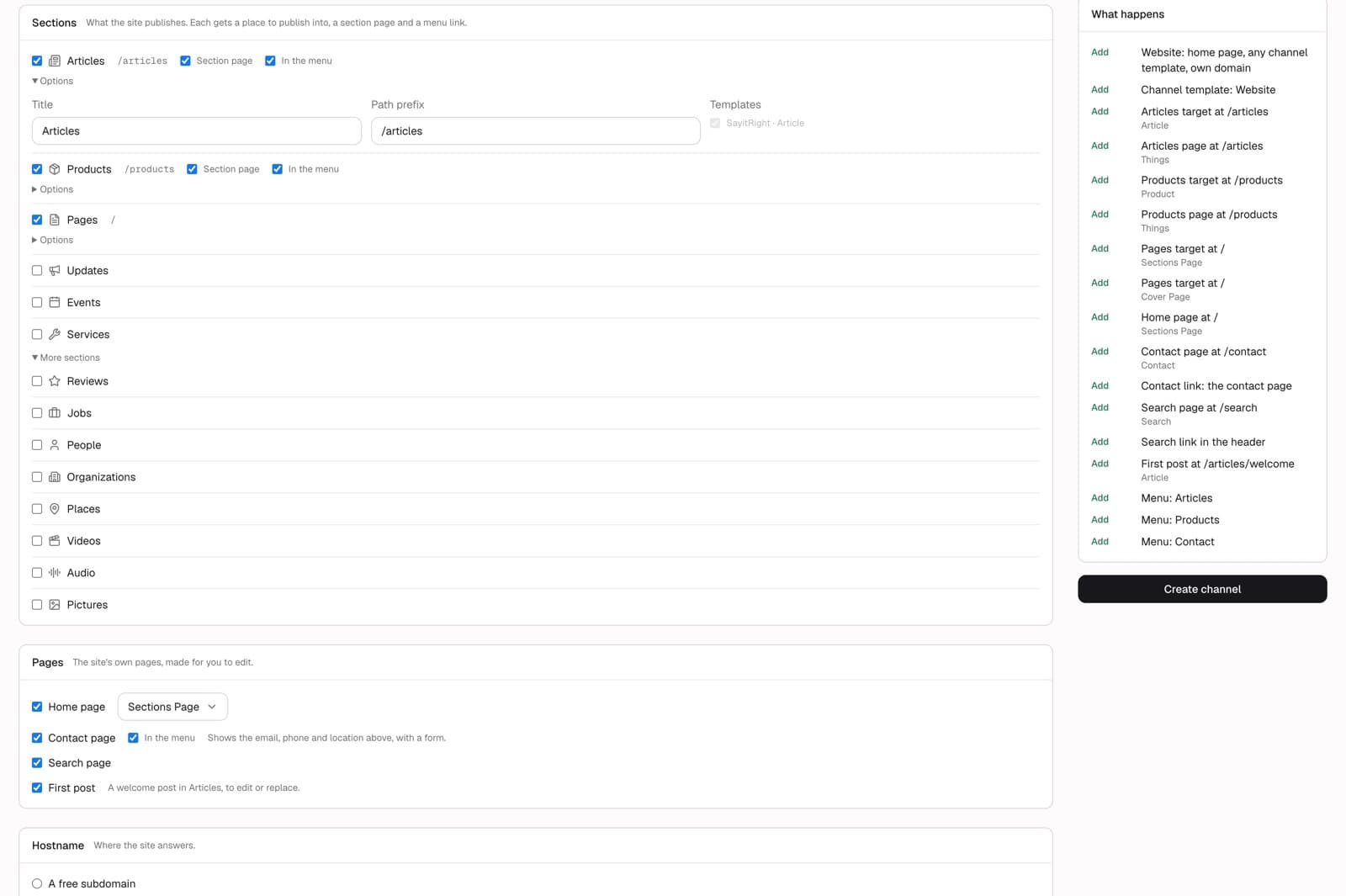
Under Sections, check the kinds of content the site will publish. The form initially selects Articles, Products, and Pages. Keep only the sections that fit your purpose. For a support site, Articles and Pages are a useful starting point.
A selected section establishes a place to publish its content. Where offered, Section page creates the browsing page and In the menu includes a navigation link. Review these independently: a section can exist without needing a prominent menu link.
Expand Options to inspect a section’s Title, Path prefix, and Templates. For example, Articles commonly uses /articles. The path prefix determines the beginning of the addresses published through that target.
Expand More sections for options including People and Organizations, as well as Reviews, Jobs, Places, Videos, Audio, and Pictures. Add People or Organizations when your site needs profile pages for authors or references. Available choices depend on your dashboard and templates.
5. Choose the starter pages
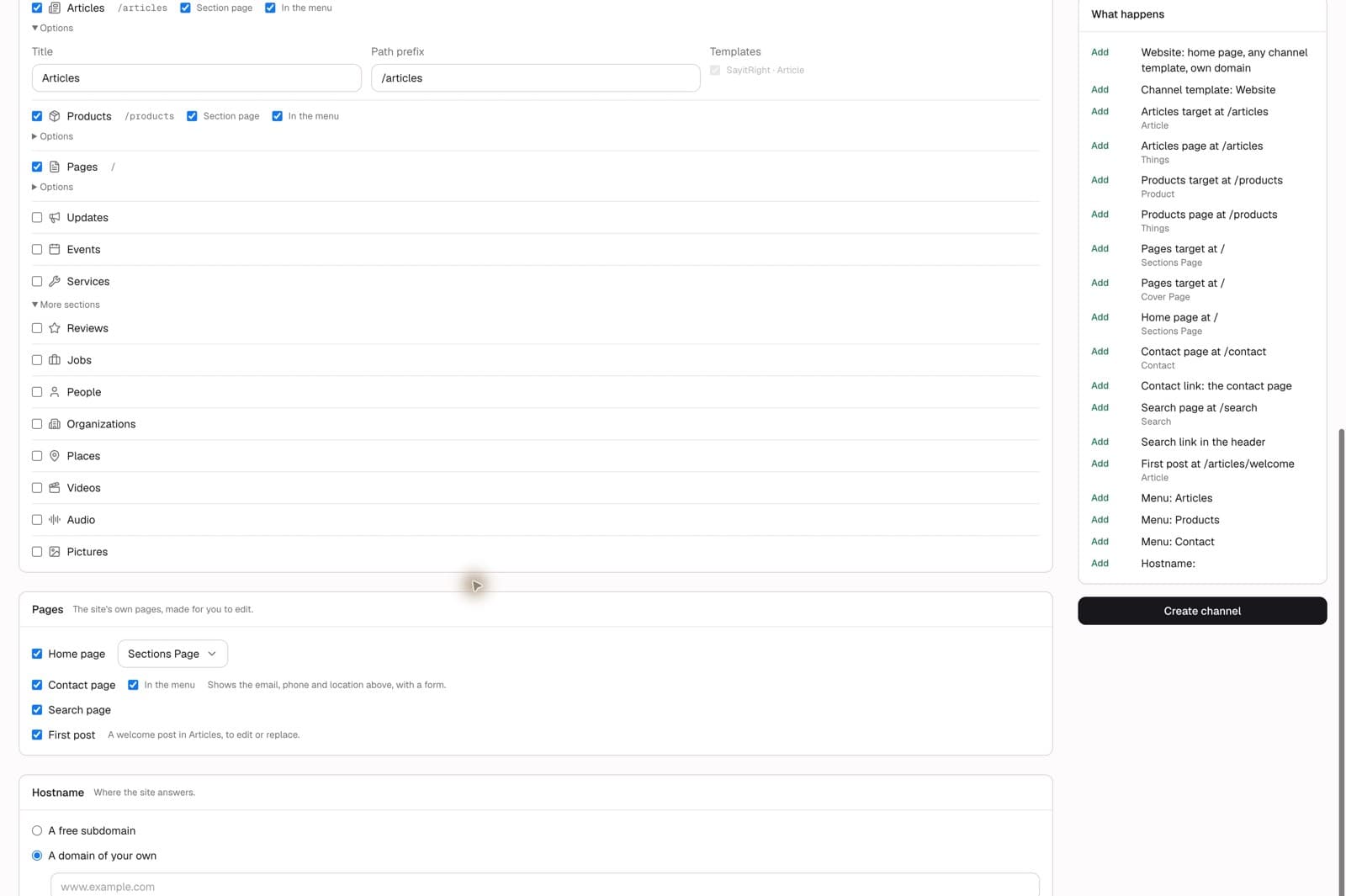
Under Pages, review each item before creating the channel:
- Home page: creates the site’s starting page; the form offers a page template such as Sections Page.
- Contact page: provides contact details and a form. Its In the menu option controls the link.
- Search page: adds a way for visitors to find content.
- First post: adds a welcome article you can edit or replace.
A short home page with links to detailed posts is easier to browse than putting every guide on the home page. Remove starter content you do not need before launching.
6. Decide where the site will answer
Under Hostname, choose one option:
- A free subdomain: enter the available subdomain you want. The form shows the suffix separately, so check the complete address.
- A domain of your own: enter the hostname, such as
www.example.com. Adding it here does not finish DNS setup. Follow the records shown under Hostnames. - Skip for now: prepare the channel before connecting an address.
Use a hostname you control. If another person manages your domain, share the records shown in the dashboard with them. Confirm the address works before directing visitors to it.
7. Review and create
Read the What happens panel on the right. It summarizes the selected template, targets, paths, pages, menu links, first post, and hostname. Changes to the form change this summary.
Check for unwanted sections or sample pages, confirm the intended address, and review the Live choice. When the summary matches your plan, select Create channel. If the dashboard reports a problem, resolve that message before continuing; permissions, available templates, and plan allowances can affect what you can create.
8. Finish the branding and content
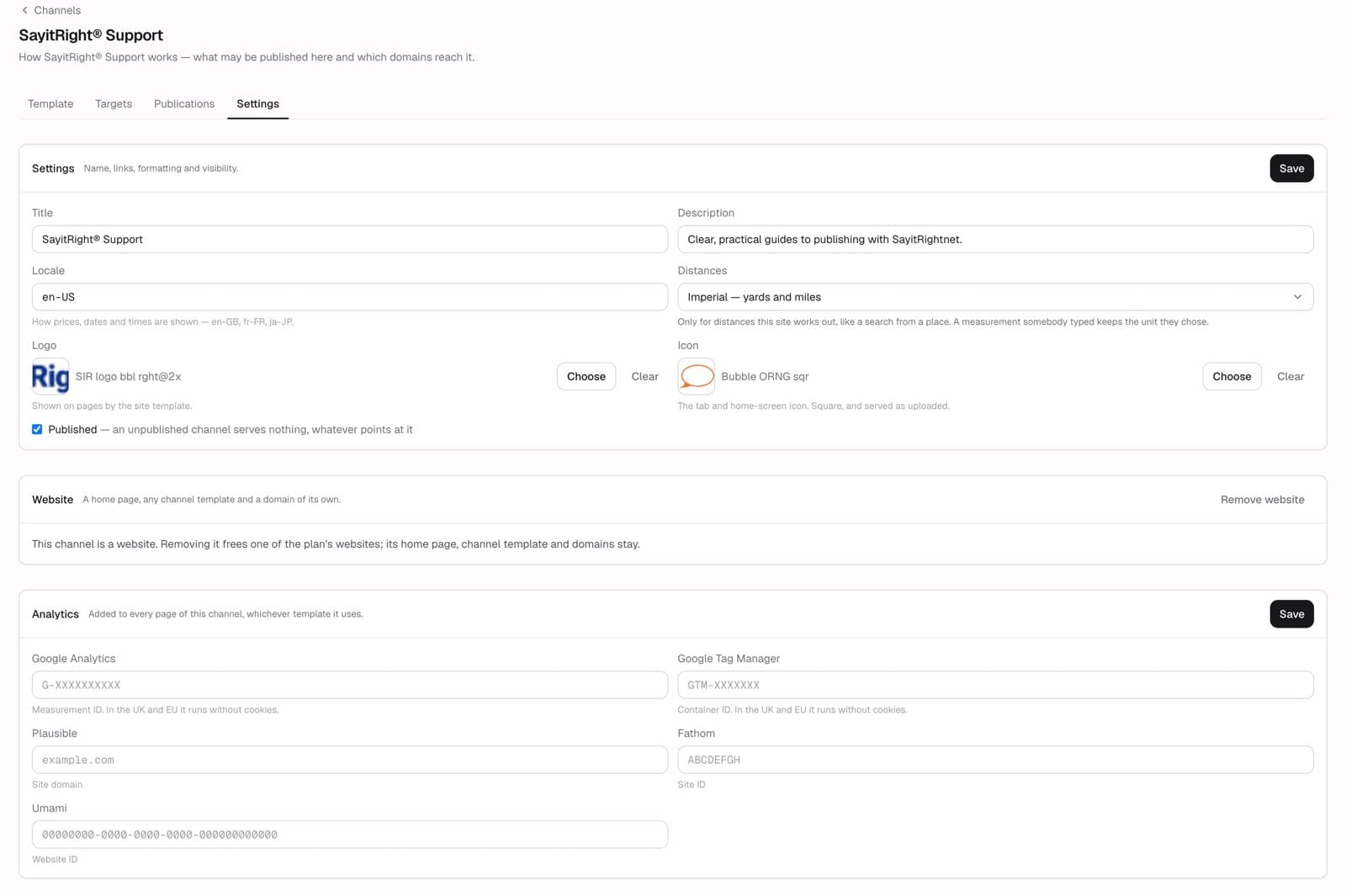
Open the created channel from Channels. The existing SayitRight® Support channel below illustrates the management area:
- Settings holds the title, description, locale, logo, icon, and publication controls.
- Template lets you work on the site’s content and theme.
- Targets shows the publishing destinations, templates, and path prefixes.
- Publications lets you inspect what is published on the channel.
Use your approved logo and consistent site colors. For our SayitRight® sites, the footer uses burgundy #800020 with cream text #FFFAF5. Use SayitRight® when writing our registered brand name.
Keep menu labels short, check the home page, replace the welcome post, and publish your first useful article. In the settings shown here, Published controls whether the channel serves content at all. A listed article cannot make an unpublished channel visible.
Before sharing the site
Open the public address and check the home page, menu, article list, search, contact page, logo, and footer. Follow at least one article link on a narrow screen as well as a desktop. Confirm that intended posts are listed and that draft material is not being presented as finished content.
Frequently asked questions
What is the difference between a channel and an Organization post?
A channel is where you publish. An Organization post describes an organization and can be selected as an author or reference. Creating one does not create the other.
Can I create the channel before connecting a domain?
Yes. Choose Skip for now under Hostname. Add and verify the address later using the channel’s hostname controls.
Why is my article unavailable even though it is listed?
Check the channel’s Published setting, its hostname and DNS, and the article’s destination and path. Channel visibility and publication status are separate controls.
Do I need every section?
No. Choose sections that serve your audience. The setup can be changed later. A focused support site can begin with pages and articles, then add profiles as needed.
Continue learning
Create a Quickpost · Create an Organization profile · Create a Person profile
Browse all support guides · Contact support
Platform terminology
Need a definition? The SayitRight® Platform Lexicon explains posts, channels, targets, templates, authors, references, and publication settings.
Keywords
- support
- getting started
- channels